Learning how to improve Shopify site speed and SEO in 2026 helps protect your store’s shopping experience and sales. Shopify’s 2026 analysis found that every 100 milliseconds of slower load time was associated with conversion rates about 3.5% lower. When mobile pages take several seconds to load, shoppers may leave before seeing your products, making speed optimization an important part of your store’s SEO strategy.
Here is a quick summary of the highest-impact speed fixes you can apply to your online store today:
- Quick Summary for Busy Store Owners:
- Compress Heavy Product Photos: Images make up most of your page weight and shrinking them delivers the fastest loading improvement.
- Load Main Images First: Preload your primary product or hero banner photo so shoppers see your main content right away.
- Defer Third-Party App Scripts: Load chat widgets, review badges, and tracking scripts after the main page finishes rendering on screen.
- Show Text While Fonts Load: Prevent invisible text delays on mobile screens by letting fallback system text appear while custom fonts download.
- Always Back Up Your Theme First: Never edit theme code without an automatic backup and a simple way to undo changes safely.
Why Google Core Web Vitals Drive Your Organic Store Traffic?
Google Search Central confirms that Core Web Vitals are used directly by its ranking systems to reward fast pages. These metrics measure how real Chrome users experience your store’s loading speed, button responsiveness, and visual layout stability.
Here is how each official Google metric works and what usually slows it down on a Shopify store:
| Core Web Vital Metric | Official Google Passing Target | What It Measures for Shoppers | Most Common Culprit on Shopify Stores |
| Largest Contentful Paint (LCP) | Under 2.5 seconds from when the page starts loading. | How fast the largest visible image or headline appears on the customer’s screen. | Multi-megabyte product photos or lazy loading applied accidentally to the top hero banner. |
| Interaction to Next Paint (INP) | Under 200 milliseconds when a user clicks or taps. | How quickly the page responds when a shopper taps a size selector or cart button. | Heavy JavaScript files injected by multiple third-party apps running during initial page load. |
| Cumulative Layout Shift (CLS) | Score of less than 0.1 across the entire page session. | Whether images, announcement bars, or fonts jump around while the page is still loading. | Product images missing width and height attributes or late-loading promotional pop-up banners. |
Separating Built-In Shopify CDN Features From Manual Tasks
Many generic blog posts give terrible advice like telling Shopify store owners to edit server .htaccess files manually. Because Shopify is a fully hosted platform, its global infrastructure already manages server-level caching and file compression automatically.
Here is what the platform handles behind the scenes versus where your manual speed optimization efforts actually belong:
- What Shopify’s Global Infrastructure Already Handles Automatically:
- Global Content Delivery Network (CDN): Automatically distributes copies of your store’s images and static files across servers worldwide to lower latency.
- Automatic Gzip and Brotli Compression: Compresses text responses from the server automatically without requiring you to configure any hosting control panels.
- Server-Level Browser Caching Headers: Caches static assets for returning visitors automatically so you never need to touch server configuration files.
- What You Still Must Optimize Inside Your Storefront:
- Raw Media Upload Sizes: Uploading a three-megabyte camera photo still forces mobile browsers to download far too much data.
- Render-Blocking App JavaScript: Every app you install can inject scripts into your theme header that pause page rendering.
- Theme Font and Image Loading Order: Your theme controls whether above-the-fold images load first or get delayed behind heavy tracking scripts.
- Redirect Chains and Broken Links: Internal links pointing to redirected URLs add extra server round-trips that slow down initial loading.
Compressing Heavy Product Images Without Losing Clear Views
Images represent the largest share of total page weight on almost every ecommerce product and collection page today. Google’s web performance documentation notes that the Largest Contentful Paint element is an image on roughly eighty percent of pages.
Here are three straightforward steps to cut megabytes off your pages while keeping your product photos crisp:
- Resizing Raw Camera Photos Before Uploading
Many store owners upload studio photos straight from a camera, leaving product images several megabytes in size. Shopify’s 2026 image optimization guide reports that WebP images can be 24%–34% smaller than JPEGs at comparable visual quality, helping reduce file sizes without a noticeable loss of detail when compressed carefully.
Resize images to fit their display area and choose an efficient format to help shoppers view product photos without unnecessary download delays.
- Preloading Main Hero Images for Faster Paint
Your browser needs to know immediately which image matters most at the very top of your storefront. Telling the browser to load the main product or banner image first shaves hundreds of milliseconds off load times. Never apply lazy loading to your main top-of-page image because that intentionally delays your Largest Contentful Paint score.
- Adding Lazy Loading to Below-Fold Media Files
Shoppers cannot see the twenty product thumbnails sitting at the bottom of your collection page when they first arrive. Enabling lazy loading for off-screen images and videos defers downloading them until the shopper actually scrolls down. This simple adjustment keeps initial mobile page weight low and speeds up above-the-fold rendering across your catalog.
Cleaning Up Bloated App Scripts and Leftover Theme Code Now
Pop-ups, loyalty programs, and chat widgets can add extra code that your Shopify store needs to load. Shopify’s 2026 speed guide cites research from Yottaa’s Web Performance Index, which found that third-party apps accounted for 44% of total page load time.
This shows why it’s worth checking which apps and scripts your store loads. Remove apps you no longer use, clean up leftover code when necessary, and delay non-essential scripts so shoppers can see your products sooner.
Here is how you can stop heavy app code from hurting your search rankings and mobile conversion rates:
- Loading Third-Party App Scripts After Render
Most third-party widgets do not need to run during the first half-second when a shopper opens your page. Deferring non-critical app scripts until after the main page renders can save hundreds of milliseconds on mobile devices. Shoppers see your product photos and prices immediately while secondary scripts load quietly in the background afterward.
- Removing Leftover Code From Deleted Store Apps
Uninstalling an app from your Shopify admin settings does not always remove the code it injected into your theme. Old script tags and liquid snippets often stay behind in theme.liquid, forcing browsers to fetch dead external files. Auditing your theme files after removing unused apps clears out dead code that silently drags down your speed.
- Avoiding Duplicate Schema and Tracking Pixels
Running multiple marketing or SEO apps often causes duplicate tracking pixels and conflicting structured data markup on every page. Consolidating your SEO checks, image compression, broken link scanning, and schema into one lightweight workflow prevents script bloat. You can see how a single tool replaces six separate app categories on the ShopSEO Features overview page.
Want to see how much weight you can cut from your product images and pages in one click? Visit ShopSEO to scan your store for oversized images and see the exact speed fixes available for your theme.
Optimizing Theme Fonts and Liquid Templates for Mobile Load
Beyond photos and apps, your theme’s font files, internal links, and template structure play a major role in speed. Small adjustments to how fonts display and how internal links resolve can make your storefront feel noticeably snappier.
Here is a practical checklist to keep your theme templates and typography fast across every device:
- Speed Up Web Font Rendering:
- Show Text While Fonts Load: Applying font-display: swap lets browsers show readable system text immediately while custom brand fonts finish downloading.
- Limit Extra Font Weights: Loading five different font families and weights adds unnecessary network requests to every single page view.
- Use Hosted System or Shopify Fonts: Avoid pulling slow external font stylesheets from multiple third-party servers during initial page rendering.
- Eliminate Internal Redirect Chains and Dead Links:
- Fix Internal Redirect Loops: Google’s web.dev guidelines highlight that unnecessary redirects add extra latency to your Time to First Byte.
- Replace Broken Internal Links Directly: Update internal links so they point straight to the final live destination URL instead of hopping through redirects.
- Keep Theme Templates Lean:
- Avoid Heavy Auto-Rotating Carousels: Multi-image hero sliders force mobile browsers to download several huge banners at once, hurting both speed and conversions.
- Set Explicit Image Dimensions: Always define width and height attributes on theme image tags so browsers reserve the right space before loading.
Applying Safe Speed Fixes With Theme Backups and Easy Undo
The biggest reason store owners delay speed optimization is the fear of breaking their live theme layout by mistake. Editing theme.liquid files by hand without a backup can easily break product galleries or mobile navigation menus.
Here is how a safe, reversible optimization workflow protects your store while boosting your Google PageSpeed scores:
| Speed Optimization Task | Typical Performance Benefit | Traditional Risky Manual Method | Safe Automated Workflow With ShopSEO |
| Prioritizing Main Page Image | Improves Largest Contentful Paint so top visuals appear faster. | Manually editing liquid image tags across multiple theme template files. | Applied from one checklist with automatic theme backup and one-click undo. |
| Deferring App Scripts | Saves hundreds of milliseconds on mobile by loading scripts after the page. | Hunting through theme.liquid to add defer attributes without breaking app widgets. | Switched on safely from your speed dashboard and reversible in one click. |
| Compressing Product Photos | Cuts hundreds of kilobytes or megabytes per product page immediately. | Exporting all photos, compressing them in external tools, and re-uploading manually. | Compresses store images directly and applies lazy loading across your catalog. |
| Showing Text During Font Load | Saves mobile rendering delay and stops invisible text flashes. | Editing custom CSS declarations across theme stylesheet assets by hand. | Applied cleanly with a pre-change theme backup so nothing is ever locked in. |
To see how your store scores across both page speed and nineteen core on-page SEO checks, check out the ShopSEO Store Audit page.
Speed Up Your Shopify Store With ShopSEO
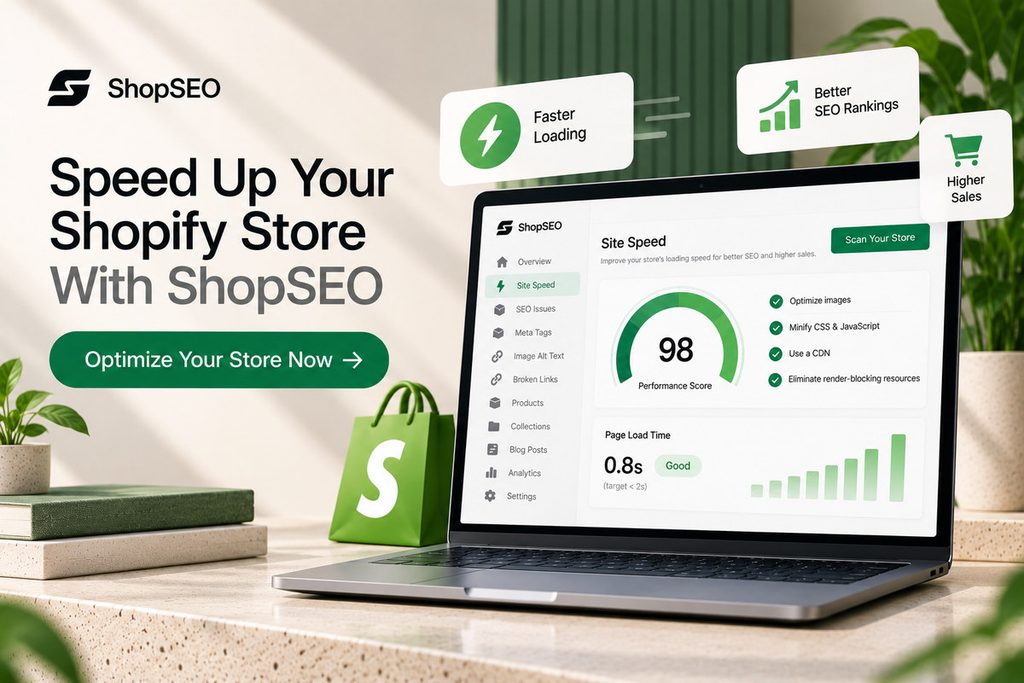
Large product images, delayed page elements, and heavy app scripts can make your storefront feel slow. Finding the cause isn’t always straightforward, especially when your theme and several apps affect how pages load.
ShopSEO brings practical speed checks and fixes into one place, so you can spend less time digging through theme code.
- Check your store speed: Run Google PageSpeed checks on your homepage and a product page.
- Optimize product images: Compress images and reduce unnecessary page weight.
- Load important content sooner: Apply available fixes to prioritize the main image, delay non-essential app scripts, and show text while fonts load.
- Apply changes with more confidence: ShopSEO backs up your theme before applying speed fixes and provides an undo option for each fix.
You can review the available fixes before deciding which ones to apply. Results depend on your theme, apps, and current store performance.
Final Notes
Following a clear plan to improve shopify site speed seo optimization 2026 makes your store faster for every buyer. When you compress heavy images, defer app scripts, and fix Core Web Vitals safely, both rankings and conversions grow.
Here is how you can check your store speed and fix technical bottlenecks right now with zero risk:
- Head over to ShopSEO to run a free, read-only audit and Google PageSpeed check on your store.
- See the exact millisecond and kilobyte savings available from compressing images, preloading main photos, and deferring app scripts.
- Apply speed fixes from one simple list with an automatic theme backup and instant one-click undo at any time.
Give your Shopify store a faster, smoother shopping experience. Explore ShopSEO’s speed optimization features and find out which fixes are available for your store
FAQs
- Does store speed directly affect Google rankings?
Yes, Google Search Central explicitly states that Core Web Vitals are used by its core search ranking systems. Pages that load quickly, respond fast to taps, and stay visually stable align with Google’s page experience rewards. Furthermore, faster mobile pages reduce bounce rates and help shoppers browse more products during every organic session.
- What are the target Core Web Vitals scores?
Google recommends achieving a Largest Contentful Paint under 2.5 seconds from when the page first starts loading. Your Interaction to Next Paint should stay below 200 milliseconds so buttons feel responsive when shoppers tap them. Finally, your Cumulative Layout Shift score must remain under 0.1 so page elements never jump around unexpectedly.
- Why did uninstalling apps not speed up my store?
When you uninstall a third-party app from your Shopify admin, leftover code often remains inside your theme files. Those orphaned liquid snippets and script tags continue firing on every page load and slow down mobile browsers. Cleaning up leftover app snippets or deferring non-critical scripts is necessary to reclaim that lost loading speed.
- Should I lazy load every image on my store?
No, you should only lazy load images and videos that sit below the visible fold on your pages. Applying lazy loading to your main top hero banner or primary product photo actually slows down initial rendering. Always load your main above-the-fold image first and lazy load the remaining gallery thumbnails further down the page.
- Do I need to set up a separate CDN for Shopify?
No, Shopify automatically includes a built-in global Content Delivery Network that serves your store assets around the world. You do not need to configure .htaccess files or install server compression plugins like you would on self-hosted platforms. Instead, focus on compressing oversized camera photos before or after upload so the CDN serves lightweight image files.
- How do web fonts slow down mobile product pages?
When a theme loads heavy custom fonts without optimization, browsers often hide text until the font file finishes downloading. This causes a flash of invisible text that frustrates mobile shoppers and delays perceived page loading times. Configuring your theme to show fallback text while fonts load saves valuable milliseconds on mobile devices immediately.
- Can speed optimizations break my store theme layout?
Manual code edits to JavaScript and Liquid files can accidentally break sliders, carts, or app widgets if done carelessly. That is why any speed tool you use should back up your theme automatically before making a single change. Being able to apply fixes from a clear list and undo any item with one click keeps you safe.
- Which pages should I test for store speed first?
You should always test both your home page and a core product page using Google PageSpeed Insights. Product and collection pages often load different app scripts and heavier image galleries than your main home page. Fixing speed bottlenecks on product templates directly improves both your organic landing page experience and checkout conversion rates.