Tag: Technical SEO

  • How to Improve Shopify Site Speed SEO Optimization 2026 

    How to Improve Shopify Site Speed SEO Optimization 2026 

    Learning how to improve Shopify site speed and SEO in 2026 helps protect your store’s shopping experience and sales. Shopify’s 2026 analysis found that every 100 milliseconds of slower load time was associated with conversion rates about 3.5% lower. When mobile pages take several seconds to load, shoppers may leave before seeing your products, making speed optimization an important part of your store’s SEO strategy. 

    Here is a quick summary of the highest-impact speed fixes you can apply to your online store today:

    • Quick Summary for Busy Store Owners:
      • Compress Heavy Product Photos: Images make up most of your page weight and shrinking them delivers the fastest loading improvement.
      • Load Main Images First: Preload your primary product or hero banner photo so shoppers see your main content right away.
      • Defer Third-Party App Scripts: Load chat widgets, review badges, and tracking scripts after the main page finishes rendering on screen.
      • Show Text While Fonts Load: Prevent invisible text delays on mobile screens by letting fallback system text appear while custom fonts download.
      • Always Back Up Your Theme First: Never edit theme code without an automatic backup and a simple way to undo changes safely.

    Why Google Core Web Vitals Drive Your Organic Store Traffic?

    Google Search Central confirms that Core Web Vitals are used directly by its ranking systems to reward fast pages. These metrics measure how real Chrome users experience your store’s loading speed, button responsiveness, and visual layout stability.

    Here is how each official Google metric works and what usually slows it down on a Shopify store:

    Core Web Vital MetricOfficial Google Passing TargetWhat It Measures for ShoppersMost Common Culprit on Shopify Stores
    Largest Contentful Paint (LCP)Under 2.5 seconds from when the page starts loading.How fast the largest visible image or headline appears on the customer’s screen.Multi-megabyte product photos or lazy loading applied accidentally to the top hero banner.
    Interaction to Next Paint (INP)Under 200 milliseconds when a user clicks or taps.How quickly the page responds when a shopper taps a size selector or cart button.Heavy JavaScript files injected by multiple third-party apps running during initial page load.
    Cumulative Layout Shift (CLS)Score of less than 0.1 across the entire page session.Whether images, announcement bars, or fonts jump around while the page is still loading.Product images missing width and height attributes or late-loading promotional pop-up banners.

    Separating Built-In Shopify CDN Features From Manual Tasks

    Many generic blog posts give terrible advice like telling Shopify store owners to edit server .htaccess files manually. Because Shopify is a fully hosted platform, its global infrastructure already manages server-level caching and file compression automatically.

    Here is what the platform handles behind the scenes versus where your manual speed optimization efforts actually belong:

    • What Shopify’s Global Infrastructure Already Handles Automatically:
      • Global Content Delivery Network (CDN): Automatically distributes copies of your store’s images and static files across servers worldwide to lower latency.
      • Automatic Gzip and Brotli Compression: Compresses text responses from the server automatically without requiring you to configure any hosting control panels.
      • Server-Level Browser Caching Headers: Caches static assets for returning visitors automatically so you never need to touch server configuration files.
    • What You Still Must Optimize Inside Your Storefront:
      • Raw Media Upload Sizes: Uploading a three-megabyte camera photo still forces mobile browsers to download far too much data.
      • Render-Blocking App JavaScript: Every app you install can inject scripts into your theme header that pause page rendering.
      • Theme Font and Image Loading Order: Your theme controls whether above-the-fold images load first or get delayed behind heavy tracking scripts.
      • Redirect Chains and Broken Links: Internal links pointing to redirected URLs add extra server round-trips that slow down initial loading.

    Compressing Heavy Product Images Without Losing Clear Views

    Images represent the largest share of total page weight on almost every ecommerce product and collection page today. Google’s web performance documentation notes that the Largest Contentful Paint element is an image on roughly eighty percent of pages.

    Here are three straightforward steps to cut megabytes off your pages while keeping your product photos crisp:

    1. Resizing Raw Camera Photos Before Uploading

    Many store owners upload studio photos straight from a camera, leaving product images several megabytes in size. Shopify’s 2026 image optimization guide reports that WebP images can be 24%–34% smaller than JPEGs at comparable visual quality, helping reduce file sizes without a noticeable loss of detail when compressed carefully.

    Resize images to fit their display area and choose an efficient format to help shoppers view product photos without unnecessary download delays.

    1. Preloading Main Hero Images for Faster Paint

    Your browser needs to know immediately which image matters most at the very top of your storefront. Telling the browser to load the main product or banner image first shaves hundreds of milliseconds off load times. Never apply lazy loading to your main top-of-page image because that intentionally delays your Largest Contentful Paint score.

    1. Adding Lazy Loading to Below-Fold Media Files

    Shoppers cannot see the twenty product thumbnails sitting at the bottom of your collection page when they first arrive. Enabling lazy loading for off-screen images and videos defers downloading them until the shopper actually scrolls down. This simple adjustment keeps initial mobile page weight low and speeds up above-the-fold rendering across your catalog.

    Cleaning Up Bloated App Scripts and Leftover Theme Code Now

    Pop-ups, loyalty programs, and chat widgets can add extra code that your Shopify store needs to load. Shopify’s 2026 speed guide cites research from Yottaa’s Web Performance Index, which found that third-party apps accounted for 44% of total page load time.

    This shows why it’s worth checking which apps and scripts your store loads. Remove apps you no longer use, clean up leftover code when necessary, and delay non-essential scripts so shoppers can see your products sooner. 

    Here is how you can stop heavy app code from hurting your search rankings and mobile conversion rates:

    1. Loading Third-Party App Scripts After Render

    Most third-party widgets do not need to run during the first half-second when a shopper opens your page. Deferring non-critical app scripts until after the main page renders can save hundreds of milliseconds on mobile devices. Shoppers see your product photos and prices immediately while secondary scripts load quietly in the background afterward.

    1. Removing Leftover Code From Deleted Store Apps

    Uninstalling an app from your Shopify admin settings does not always remove the code it injected into your theme. Old script tags and liquid snippets often stay behind in theme.liquid, forcing browsers to fetch dead external files. Auditing your theme files after removing unused apps clears out dead code that silently drags down your speed.

    1. Avoiding Duplicate Schema and Tracking Pixels

    Running multiple marketing or SEO apps often causes duplicate tracking pixels and conflicting structured data markup on every page. Consolidating your SEO checks, image compression, broken link scanning, and schema into one lightweight workflow prevents script bloat. You can see how a single tool replaces six separate app categories on the ShopSEO Features overview page.

    Want to see how much weight you can cut from your product images and pages in one click? Visit ShopSEO to scan your store for oversized images and see the exact speed fixes available for your theme.

    Optimizing Theme Fonts and Liquid Templates for Mobile Load

    Beyond photos and apps, your theme’s font files, internal links, and template structure play a major role in speed. Small adjustments to how fonts display and how internal links resolve can make your storefront feel noticeably snappier.

    Here is a practical checklist to keep your theme templates and typography fast across every device:

    • Speed Up Web Font Rendering:
      • Show Text While Fonts Load: Applying font-display: swap lets browsers show readable system text immediately while custom brand fonts finish downloading.
      • Limit Extra Font Weights: Loading five different font families and weights adds unnecessary network requests to every single page view.
      • Use Hosted System or Shopify Fonts: Avoid pulling slow external font stylesheets from multiple third-party servers during initial page rendering.
    • Eliminate Internal Redirect Chains and Dead Links:
      • Fix Internal Redirect Loops: Google’s web.dev guidelines highlight that unnecessary redirects add extra latency to your Time to First Byte.
      • Replace Broken Internal Links Directly: Update internal links so they point straight to the final live destination URL instead of hopping through redirects.
    • Keep Theme Templates Lean:
      • Avoid Heavy Auto-Rotating Carousels: Multi-image hero sliders force mobile browsers to download several huge banners at once, hurting both speed and conversions.
      • Set Explicit Image Dimensions: Always define width and height attributes on theme image tags so browsers reserve the right space before loading.

    Applying Safe Speed Fixes With Theme Backups and Easy Undo

    The biggest reason store owners delay speed optimization is the fear of breaking their live theme layout by mistake. Editing theme.liquid files by hand without a backup can easily break product galleries or mobile navigation menus.

    Here is how a safe, reversible optimization workflow protects your store while boosting your Google PageSpeed scores:

    Speed Optimization TaskTypical Performance BenefitTraditional Risky Manual MethodSafe Automated Workflow With ShopSEO
    Prioritizing Main Page ImageImproves Largest Contentful Paint so top visuals appear faster.Manually editing liquid image tags across multiple theme template files.Applied from one checklist with automatic theme backup and one-click undo.
    Deferring App ScriptsSaves hundreds of milliseconds on mobile by loading scripts after the page.Hunting through theme.liquid to add defer attributes without breaking app widgets.Switched on safely from your speed dashboard and reversible in one click.
    Compressing Product PhotosCuts hundreds of kilobytes or megabytes per product page immediately.Exporting all photos, compressing them in external tools, and re-uploading manually.Compresses store images directly and applies lazy loading across your catalog.
    Showing Text During Font LoadSaves mobile rendering delay and stops invisible text flashes.Editing custom CSS declarations across theme stylesheet assets by hand.Applied cleanly with a pre-change theme backup so nothing is ever locked in.

    To see how your store scores across both page speed and nineteen core on-page SEO checks, check out the ShopSEO Store Audit page.

    Speed Up Your Shopify Store With ShopSEO
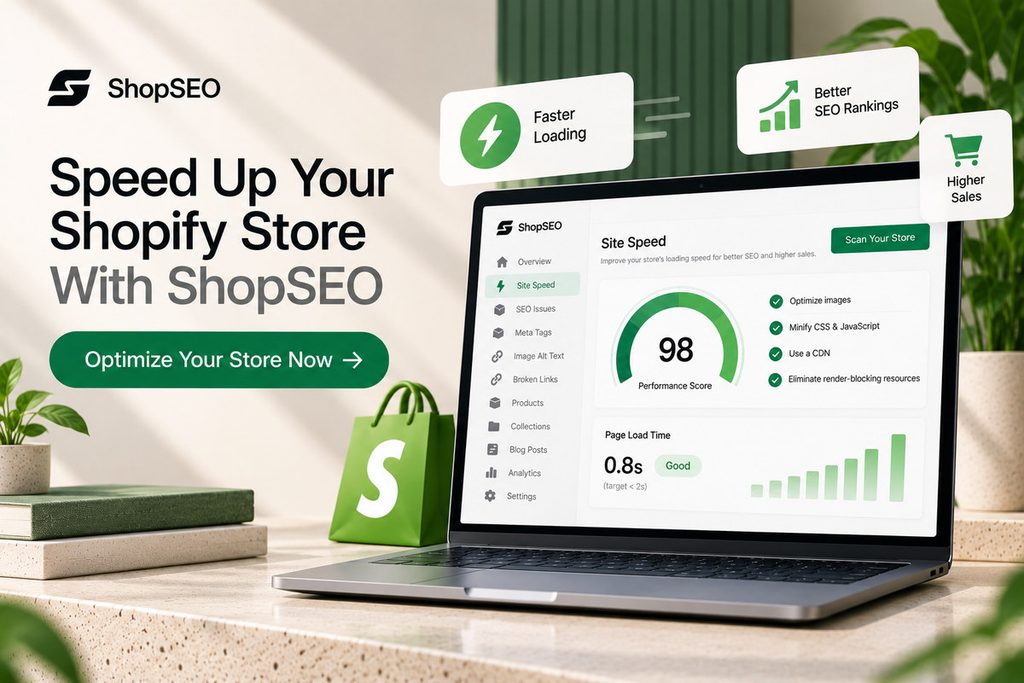
    ShopSEO site speed dashboard showing Shopify performance metrics, image optimization, CSS and JavaScript minification, and a call to optimize store speed.

    Large product images, delayed page elements, and heavy app scripts can make your storefront feel slow. Finding the cause isn’t always straightforward, especially when your theme and several apps affect how pages load.

    ShopSEO brings practical speed checks and fixes into one place, so you can spend less time digging through theme code.

    • Check your store speed: Run Google PageSpeed checks on your homepage and a product page.
    • Optimize product images: Compress images and reduce unnecessary page weight.
    • Load important content sooner: Apply available fixes to prioritize the main image, delay non-essential app scripts, and show text while fonts load.
    • Apply changes with more confidence: ShopSEO backs up your theme before applying speed fixes and provides an undo option for each fix.

    You can review the available fixes before deciding which ones to apply. Results depend on your theme, apps, and current store performance.

    Final Notes

    Following a clear plan to improve shopify site speed seo optimization 2026 makes your store faster for every buyer. When you compress heavy images, defer app scripts, and fix Core Web Vitals safely, both rankings and conversions grow.

    Here is how you can check your store speed and fix technical bottlenecks right now with zero risk:

    • Head over to ShopSEO to run a free, read-only audit and Google PageSpeed check on your store.
    • See the exact millisecond and kilobyte savings available from compressing images, preloading main photos, and deferring app scripts.
    • Apply speed fixes from one simple list with an automatic theme backup and instant one-click undo at any time.

    Give your Shopify store a faster, smoother shopping experience. Explore ShopSEO’s speed optimization features and find out which fixes are available for your store

    FAQs

    1. Does store speed directly affect Google rankings?

    Yes, Google Search Central explicitly states that Core Web Vitals are used by its core search ranking systems. Pages that load quickly, respond fast to taps, and stay visually stable align with Google’s page experience rewards. Furthermore, faster mobile pages reduce bounce rates and help shoppers browse more products during every organic session.

    1. What are the target Core Web Vitals scores?

    Google recommends achieving a Largest Contentful Paint under 2.5 seconds from when the page first starts loading. Your Interaction to Next Paint should stay below 200 milliseconds so buttons feel responsive when shoppers tap them. Finally, your Cumulative Layout Shift score must remain under 0.1 so page elements never jump around unexpectedly.

    1. Why did uninstalling apps not speed up my store?

    When you uninstall a third-party app from your Shopify admin, leftover code often remains inside your theme files. Those orphaned liquid snippets and script tags continue firing on every page load and slow down mobile browsers. Cleaning up leftover app snippets or deferring non-critical scripts is necessary to reclaim that lost loading speed.

    1. Should I lazy load every image on my store?

    No, you should only lazy load images and videos that sit below the visible fold on your pages. Applying lazy loading to your main top hero banner or primary product photo actually slows down initial rendering. Always load your main above-the-fold image first and lazy load the remaining gallery thumbnails further down the page.

    1. Do I need to set up a separate CDN for Shopify?

    No, Shopify automatically includes a built-in global Content Delivery Network that serves your store assets around the world. You do not need to configure .htaccess files or install server compression plugins like you would on self-hosted platforms. Instead, focus on compressing oversized camera photos before or after upload so the CDN serves lightweight image files.

    1. How do web fonts slow down mobile product pages?

    When a theme loads heavy custom fonts without optimization, browsers often hide text until the font file finishes downloading. This causes a flash of invisible text that frustrates mobile shoppers and delays perceived page loading times. Configuring your theme to show fallback text while fonts load saves valuable milliseconds on mobile devices immediately.

    1. Can speed optimizations break my store theme layout?

    Manual code edits to JavaScript and Liquid files can accidentally break sliders, carts, or app widgets if done carelessly. That is why any speed tool you use should back up your theme automatically before making a single change. Being able to apply fixes from a clear list and undo any item with one click keeps you safe.

    1. Which pages should I test for store speed first?

    You should always test both your home page and a core product page using Google PageSpeed Insights. Product and collection pages often load different app scripts and heavier image galleries than your main home page. Fixing speed bottlenecks on product templates directly improves both your organic landing page experience and checkout conversion rates.
  • Mastering Shopify SEO Best Practices 2026 for Online Sales

    Mastering Shopify SEO Best Practices 2026 for Online Sales

    Following proven shopify best practices in 2026 helps your online store attract ready buyers from organic search results daily. Shopify’s October 2026 ecommerce SEO guide reports that orders arriving at Shopify stores from AI search are up 13 times year over year, highlighting the growing importance of online visibility.

    Most merchants lose valuable traffic because small technical errors quietly pile up across hundreds of product pages over time.

    Here are the core focus areas that will help your catalog rank higher across search engines and AI answers:

    • Quick Summary for Busy Merchants:
      • Verify Core Indexing First: Connect your store domain to Google Search Console and submit your automated XML sitemap file immediately after launching.
      • Fix Empty Collection Pages: Add helpful category descriptions and clean headings to every collection page so search engines understand your product groupings.
      • Eliminate Duplicate Metadata: Replace repeated descriptions and raw SKU titles across product variants with unique, readable titles and clear meta descriptions.
      • Clean Up Conflicting Schema: Ensure your theme and installed apps do not output conflicting structured data that causes Google to ignore both.
      • Protect Real User Speed: Compress oversized camera photos, defer heavy scripts, and keep your Core Web Vitals passing on mobile devices daily.

    How Built-In Store Features Support Modern Search Rankings?

    Shopify handles several foundational technical tasks automatically right out of the box when you open your online retail store. Understanding what the platform already manages prevents you from installing redundant tools that slow down your storefront code.

    Here is how default platform features compare against the manual optimization tasks you still need to manage yourself:

    SEO ComponentWhat Shopify Handles AutomaticallyWhat You Must Optimize Manually
    XML Sitemap FilesAutomatically generates sitemap.xml listing your products, collections, blog posts, and static marketing pages.Submit your sitemap link inside Google Search Console and check weekly for unexpected indexing errors.
    Robots.txt RulesCreates a default robots.txt file that blocks search crawlers from indexing checkout and admin pages.Audit custom robots.txt.liquid edits only if internal faceted filters create thousands of low-value URLs.
    Canonical URL TagsAdds self-referencing canonical tags to prevent basic duplicate content issues across standard store pages.Ensure internal product links point directly to clean /products/ URLs rather than nested collection paths.
    SSL Security CertificatesActivates free HTTPS encryption across your entire custom domain to protect shopper data and rankings.Check that old HTTP links or external images do not trigger mixed content security warnings.
    Page Title TemplatesAppends your brand name to page titles automatically using your default theme liquid layout files.Rewrite raw product titles and custom meta tags so every listing targets real buyer searches.

    Fixing Store Structure and Collection Pages for High Reach

    A clean website hierarchy helps search engine crawlers and human shoppers find your best products in three simple clicks. When your pages connect logically from home to collections to products, search authority flows smoothly across your catalog.

    Here are the three structural improvements that deliver the fastest organic ranking gains for growing online stores today:

    1. Optimizing Collection Pages for Category Terms

    Collection pages help shoppers browse related products when they’re not looking for one specific item. Google’s January 2026 update revealed that its Shopping Graph contains over 50 billion product listings, with more than 2 billion refreshed every hour.

    With so many products available for discovery, clear collection titles, helpful descriptions, and relevant subheadings help explain what your category offers. Instead of relying on a bare product grid, give shoppers useful information that helps them compare options and choose the right products. 

    1. Resolving Duplicate Variant URLs With Canonicals

    Many online catalogs accidentally create duplicate content when color or size variants generate separate parameterized URLs across collections. While Shopify adds default canonical tags, internal theme links often point to long collection-based product URLs by mistake. Updating your theme templates so product cards link directly to the canonical product URL consolidates your ranking power.

    1. Repairing Broken Internal Links Across Catalogs

    Discontinuing seasonal items or changing URL handles often leaves dead 404 links scattered across your blog and collections. When shoppers or search bots hit dead links, you lose both immediate sales and valuable internal page authority. Scanning your entire catalog regularly lets you replace broken internal links or apply clean 301 redirects right away.

    Want to see every broken link and thin collection page across your catalog right now?

    Run a free, read-only store scan at ShopSEO to get a scored list of every URL you own with plain-English instructions on how to fix each issue.

    Writing Product Titles and Meta Tags That Win More Buyers

    Every product, collection, and blog post needs clear metadata that tells search engines and shoppers what you offer. Stores that leave SKU codes as titles or duplicate descriptions across variants lose clicks to clearer competitors daily.

    Here is how you can structure every on-page element to maximize both search relevance and organic click-through rates:

    • Page Title Tags (Meta Titles):
      • Keep Titles Under Sixty Characters: Search engines truncate long titles, so place your main product keyword and primary benefit near the front.
      • Replace Internal SKU Codes Immediately: Never publish warehouse item numbers as public titles because real shoppers search for descriptive product names instead.
      • Match One Primary Intent Per Page: Use commercial category phrases on collection pages and specific buyer keywords on individual product listings.
    • Meta Descriptions That Earn Clicks:
      • Write Unique Copy for Every URL: Avoid letting your store copy the same generic sentence across four thousand product variants by mistake.
      • Include Clear Buyer Benefits: Mention core material details, fast shipping policies, or specific product uses within one hundred fifty-five characters.
      • Use Templates for Large Catalogs: Set up dynamic metadata rules so newly saved products automatically get clean titles and descriptions without manual typing.
    • Unique Product Body Copy:
      • Rewrite Manufacturer Descriptions: Copying supplier descriptions puts your store in direct duplicate content competition against dozens of other retailers. Shopify’s 2026 product content guide cites Salsify research showing that 53% of shoppers abandoned a purchase because product descriptions or titles were incomplete or poorly written. Hence, rewrite each description with accurate product details, practical benefits, and information that helps customers choose. 
      • Answer Practical Buyer Questions: Include exact sizing specs, care instructions, and material facts so buyers feel confident completing their purchase.
    • Descriptive Image Alt Text:
      • Remove Generic File Labels: Alt text that simply says “image” or IMG_4029.jpg wastes valuable Google Image Search traffic and hurts accessibility.
      • Describe the Product Clearly: Write plain descriptions including the product name, color, and type to pass both accessibility and ranking checks.

    Using Clean Structured Data and Schema for AI Search Views

    Modern search engines and AI shopping assistants rely on structured data markup to read your prices and stock. When your store outputs clean schema alongside clear answers, your products earn rich snippets and AI citations faster.

    Here is what you need to configure to satisfy traditional search crawlers, answer engines, and generative AI platforms:

    Optimization PillarCore Technical RequirementCommon Shopify Mistake to AvoidDirect Impact on Search & AI Visibility
    Product Schema MarkupOutput valid JSON-LD showing price, currency, stock availability, SKU, and verified customer review ratings.Letting your theme and an SEO app output conflicting Product schema twice on the same page.Unlocks rich product snippets in Google Search and feeds accurate live pricing into AI shopping overviews.
    BreadcrumbList SchemaMark up the category path from your home page to the collection and final product listing.Omitting breadcrumb markup on product templates, which leaves bare URLs in search results.Displays a clean clickable category trail above your title tag and clarifies catalog hierarchy for bots.
    Organization SchemaDefine your official store name, brand logo, customer support contact details, and verified social profiles.Leaving brand identity fields incomplete across your theme settings and structured data blocks.Builds entity trust so generative AI engines recognize and cite your store as a verified merchant.
    Conversational FAQ BlocksAnswer common buyer questions about sizing, materials, and shipping using natural, direct sentences on key pages.Burying vital product specifications inside long walls of unformatted text or image graphics.Captures voice search queries, People Also Ask boxes, and direct citations inside AI answer engines.

    If you want to prevent schema conflicts without editing theme code manually, you can explore the ShopSEO Features page to see how Product, Breadcrumb, and Organization markup can be switched on cleanly one type at a time.

    Keeping Store Speed and Core Web Vitals Healthy All Year

    Google uses real-world Core Web Vitals data from Chrome users as an official ranking signal for every website. A fast storefront keeps impatient mobile shoppers from bouncing back to search results before your products even appear.

    Here are the three official Google performance metrics you must keep in the green zone across your store:

    1. Lowering Largest Contentful Paint Under Target

    Largest Contentful Paint measures how quickly the main banner or product photo loads on a shopper’s screen. Google Search Central recommends keeping this loading time under 2.5 seconds for a healthy user page experience. Compressing multi-megabyte camera photos and loading your main product image first helps your pages pass this check easily.

    1. Reducing Interaction Delay From Heavy App Code

    Interaction to Next Paint measures how fast your page responds when a shopper taps a menu or button. To maintain a good user experience, your store must keep this response delay under 200 milliseconds consistently. Deferring non-essential app scripts until after the main page loads stops heavy JavaScript from freezing mobile screens.

    1. Stopping Layout Shifts With Fixed Media Sizes

    Cumulative Layout Shift tracks whether buttons or text jump around unexpectedly while images and fonts finish downloading. Your pages should maintain a visual stability score below 0.1 so shoppers never tap the wrong button. Setting explicit width and height attributes on images and displaying text while fonts load prevents jarring shifts.

    Auditing Your Entire Catalog Continuously Without Guesswork

    Treating search optimization as a one-time setup fails because online stores change constantly as new inventory arrives. Every time you add products, edit collections, or update your theme, new metadata gaps or broken links appear.

    Here is a practical four-step workflow to keep every URL in your store optimized without spending hours in spreadsheets:

    • Step 1: Run a Full Read-Only Store Audit First:
      • Scan your products, collections, blog posts, standard pages, and images together so no hidden page type gets missed.
      • Ensure your auditing process is strictly read-only so checking your store never alters your live theme code unexpectedly.
      • You can check how continuous scoring works on the ShopSEO Store Audit page before changing a single setting.
    • Step 2: Sort Issues by Severity and Page Type:
      • Group findings into clear categories like missing metadata, dead 404 links, oversized images, and duplicate schema blocks.
      • Fix your worst-scoring revenue pages and top collection hubs first to generate the fastest organic traffic lift.
    • Step 3: Apply Written Fixes in Bulk or One by One:
      • Follow plain-English recommendations that explain exactly what to change instead of cryptic technical error codes.
      • Use bulk templates to update missing meta titles, descriptions, and image alt text across hundreds of items at once.
    • Step 4: Automate Rules for Every New Product You Save:
      • Set up autopilot templates so every new product and photo gets clean metadata and alt text upon creation.
      • Let continuous background checks alert you immediately if a theme update or deleted product breaks a link.

    Find and Fix Shopify SEO Issues With ShopSEO

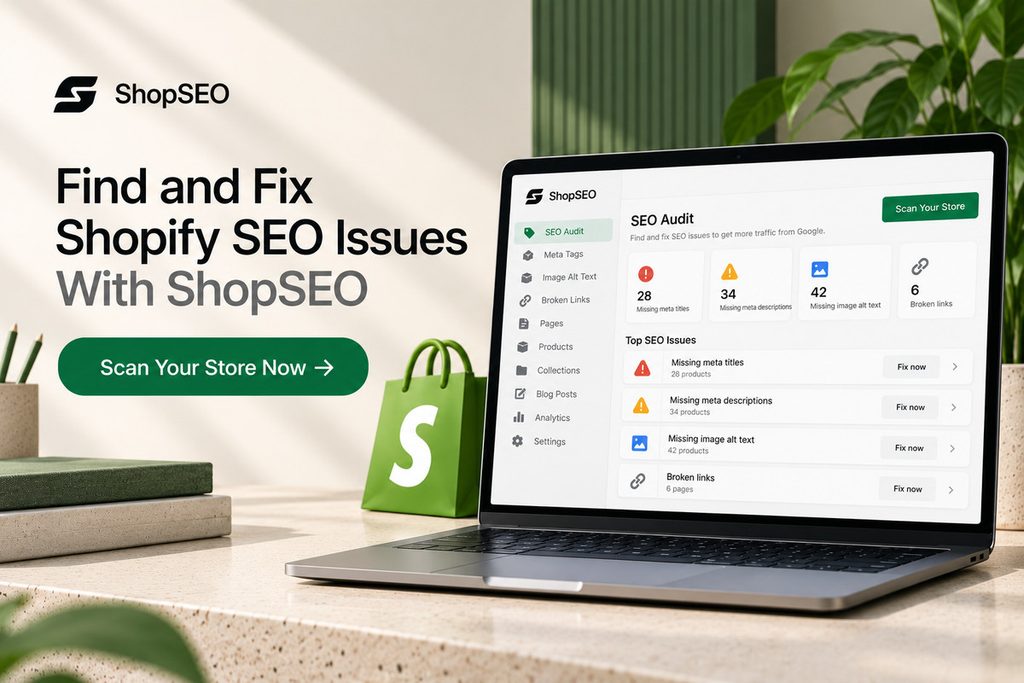
    ShopSEO SEO audit dashboard highlighting missing Shopify meta titles, meta descriptions, image alt text, and broken links, with a call to scan the store.

    Keeping a Shopify store optimized takes more than updating product titles. Missing meta descriptions, broken links, duplicate schema, and oversized images can go unnoticed as your catalog grows.

    ShopSEO helps you find these issues and work through the fixes in one place.

    • Audit your store: Check products, collections, pages, blog posts, and images.
    • Fix missing metadata: Edit meta titles, descriptions, and alt text individually or in bulk.
    • Find broken links: Identify dead internal links and see where they appear.
    • Check structured data: Find missing or conflicting schema markup.
    • Improve images: Use image optimization and manage missing alt text.

    The full store audit is available on ShopSEO’s free plan, with no credit card required. The audit is read-only, so nothing changes until you choose to apply a fix.

    Final Notes

    Applying these shopify best practices in 2026 gives your store a clean, fast foundation that search engines reward. You do not need to fix four thousand catalog issues by hand when automated auditing can spot them first.

    Here is how you can start improving your organic visibility today without risking your live storefront:

    • Visit ShopSEO to run a complete, read-only audit across your products, collections, blog posts, and images.
    • Review your scored URL list and see plain-English instructions for every missing meta tag, broken link, or slow image.
    • Apply fixes one page at a time or across your whole store with automatic theme backups and rollback protection.

    Start by finding out what’s holding your store’s SEO back. Run a free Shopify SEO audit with ShopSEO and get a clearer picture of what needs attention.

    FAQs

    1. Does Shopify handle SEO automatically for stores?

    Shopify automates foundational items like creating your XML sitemap, generating default canonical tags, and securing pages with SSL. You still need to write unique metadata, optimize collection copy, compress images, and fix broken internal links manually. Without your input, default product variants and empty category pages will struggle to outrank established competitors.

    1. Why are my collection pages not ranking well?

    Most collection pages fail to rank because they only display a grid of products without any descriptive text. Search engines need clear headings and helpful category copy to understand how your products relate to buyer searches. Adding unique introductory text and internal links turns thin collections into strong category hubs that attract traffic.

    1. How do I fix duplicate content on product pages?

    Duplicate content usually happens when product variants generate multiple URLs or when stores copy manufacturer descriptions verbatim. You should ensure internal collection links point directly to the main canonical product URL without collection path prefixes. Additionally, rewrite product descriptions and variant meta tags so every indexable page offers unique value to shoppers.

    1. Can having two SEO apps hurt my store rankings?

    Yes, running multiple SEO apps or overlapping theme features often causes duplicate structured data markup on your pages. When your theme and an app emit conflicting Product schema at the same time, Google ignores both. Stick to one clean source for structured data and remove leftover code from old uninstalled apps.

    1. What is the best image size for store SEO?

    Photos uploaded straight from a camera at several megabytes slow down mobile page loading and hurt rankings. You should resize product photos to match your theme display dimensions and compress them into lightweight WebP files. Keeping individual product images under a few hundred kilobytes protects your Largest Contentful Paint score on mobile.

    1. How does AI search change Shopify optimization?

    AI search engines and shopping assistants pull answers directly from structured data, clear headings, and conversational FAQs. Stores with accurate Product and Organization schema alongside plain-English product specs get cited far more reliably. Keeping your titles, pricing markup, and stock status clean ensures AI tools recommend your products accurately.

    1. How often should I run a store SEO audit?

    You should audit your store continuously rather than treating optimization as a once-a-year cleanup project. Adding new products, deleting sold-out items, or editing theme templates can introduce missing metadata and broken links overnight. Continuous scanning catches regressions immediately so your organic rankings never slip due to unnoticed catalog errors.

    1. Does auditing my store change my live theme?

    A trustworthy store audit should always be strictly read-only so scanning your catalog never alters your live site. You should be able to review your scores and read every recommendation before deciding which fixes to apply. Always make sure your tool backs up your theme before applying any speed or template updates.